
How to Check an SSL Certificate’s Expiration Date
An expired SSL certificate can interrupt services and trigger browser warnings. Learn how to check its validity in a browser, with an online tool, or through your certificate provider.
SSL certificates enable HTTPS encryption and help authenticate website identity. They underpin secure connections and user trust across corporate websites, e-commerce stores, APIs, and other online services. When a certificate expires, browsers may display security warnings and services may become unavailable. The disruption can also damage customer confidence; bypassing warnings can expose users to additional security risks. Regularly checking certificate validity is therefore an important part of website operations. Here are three ways to do it.
1. Check the certificate in your browser
Major browsers let you inspect a certificate’s details, including its validity period. The following steps describe common interfaces; labels and icons may vary by browser version.
Chrome
- Visit a domain that uses an SSL certificate, such as ssltrus.com.
- Select the tune icon to the left of the address bar.
- Select Connection is secure, then Certificate is valid to view the issuer, validity dates, SHA-256 fingerprint, and other details.
Microsoft Edge
- Open the website you want to check.
- Select the padlock icon to the left of the address bar.
- Select Connection is secure, then the certificate icon to view its validity period and other information.
360 Browser
- Open the target website.
- Select the padlock icon, then Certificate information. The certificate window shows its issue and expiration dates.
Firefox
- Open the target website.
- Select the padlock icon to the left of the address bar.
- Select Connection secure, then More information.
- On the Security tab, select View Certificate to check the validity dates.
2. Use an online SSL checker
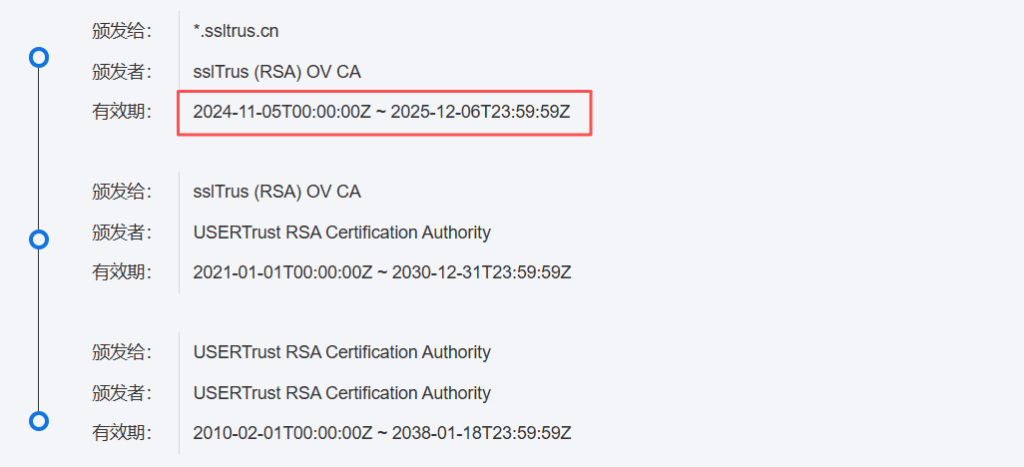
Enter the domain name into an SSL checking tool and start the test. The results show details of the certificate deployed on that domain, including its issuer, certificate information, and validity period.
3. Check your certificate provider’s console
If you purchased your certificate through a provider, such as NicSRS, you can also check it in that provider’s management console:
- Sign in and locate the certificate in your purchased certificates list.
- Open the certificate’s details to see its expiration date and other key information. Exact menu labels depend on the provider’s interface.
Regular checks help keep websites running securely and without interruption. Whether you inspect certificates manually in a browser, use an online tool, or consult your provider’s console, the goal is to know their status in time to act. Renewing or replacing certificates before they expire helps prevent security warnings and service outages.
As certificate lifetimes shorten, manual management becomes harder to sustain. sslTrus CLM, an SSL certificate automation platform, brings together automated discovery, monitoring, renewal, deployment, and alerts to improve operational efficiency and reduce security risk.